Add from the school
-
On People, open Add from the school, the first fold under Students.
-
Type 2 letters or more of a student's name, sign-in name or email and choose Find. Up to 10 matches show, each with their name and sign-in name (or email) only.
-
Choose Pick next to each one you want: they go into the Picked list under the box, where Take off removes one again. Up to 100 at a time.
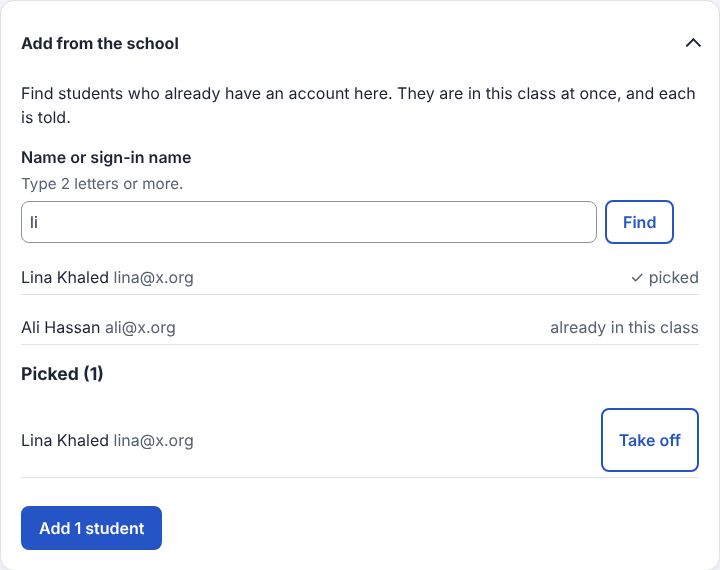
-
Choose Add 12 students (the number you picked). They are in the class at once, with no invitation. (Commands:
class.findPeopleto look up,class.addFromSchoolto add.)
Good to know
- The matches never show grades or classes; with more than 10, type more of the name. Arabic names are found with or without hamza and marks.
- Each student added gets a notification and a line in their daily email ("Sara Ahmed added you to Science 8A"), and People shows added by Sara Ahmed next to their name.
- A page then says how many were added and who was skipped and why (already in the class, not a student account, turned off).
- Only student accounts are found; someone already in the class shows already in this class. They can still Unenroll themselves.
- With the script, matches appear as you type and Pick adds to the list in the page; without it, Find, Pick and Take off reload the page and work the same.
- Co-teachers by name: the same box under Teachers finds approved teacher accounts. Pick them and choose Invite 2 teachers: each gets an invitation (and an email, when the server sends email) and chooses Join on their Classes page, because a teacher sees everyone's work and grades.
- Until then they are listed under Teachers as invited. Invite teachers by email stays.
(Command:
class.addFromSchoolwithas: teacher.) - The school's administrator can turn the look-up off for the whole school (Users ▸ School settings ▸ Looking up people); the two boxes then aren't shown.
- Adds from the school are in History at the end of People ("Sara Ahmed added Ali Hassan as a student").
Example: Ali Hassan moves to Sara's Science 8A from another section. Sara opens People ▸
Add from the school, types ali h, chooses Pick next to "Ali Hassan · ali.hassan" and
then Add 1 student. Ali sees Science 8A on his Classes page at once, with a notification
"Sara Ahmed added you to Science 8A".
Related: All the ways to add or remove people · Copy students from another class · Invite by email